ebike-preprod-cmyi.punjab.gov.pk Login Guide
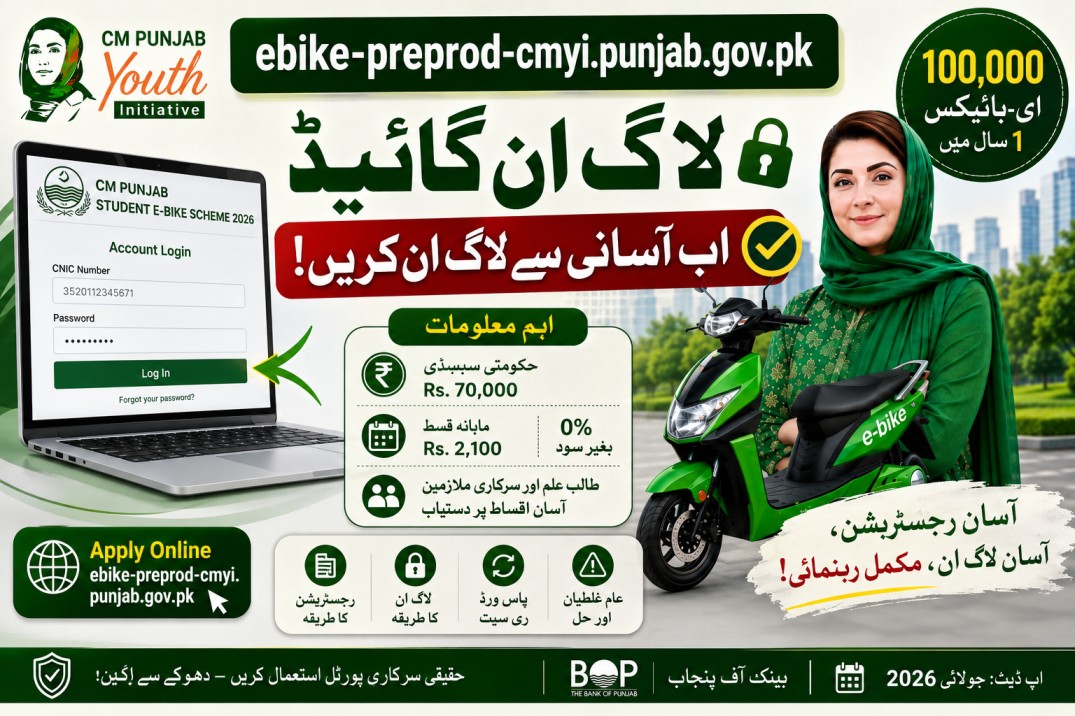
ebike-preprod-cmyi.punjab.gov.pk is the official portal for the CM Punjab Student E-Bike Scheme 2026, launched by the Punjab Government under Chief Minister Maryam Nawaz Sharif. Under this initiative, 100,000 electric bikes are being provided to eligible students across Punjab within one year, backed by a Rs. 70,000 government subsidy on every bike. The remaining cost is payable through flat, interest-free monthly installments, and female students are exempt from both the down payment and the registration fee. If you’ve already registered for the scheme, this guide covers everything about signing back into your account on this portal — logging in, resetting a forgotten password, and fixing the login errors applicants run into most often.
What is ebike-preprod-cmyi.punjab.gov.pk?
This is the web address currently being used for online registration and account access under the CM Punjab E-Bike Scheme 2026. The “preprod” segment in the URL typically indicates a pre-production or staging version of a government system — something departments often run before a service is fully migrated to its permanent domain. In practical terms, this doesn’t change how you use it: you register, log in, fill out your application, and track its progress exactly the way you would on any other official government portal.
Because the URL looks unusual, it has also become a target for confusion — and for scammers running lookalike pages. Always type or bookmark the address directly rather than clicking links shared through WhatsApp groups or unfamiliar social media posts.
Before you log in anywhere
Check the address bar carefully every time. A genuine government portal will not ask for a “processing fee” to let you log in or check your status. If a site does, close it — it is not affiliated with the Punjab government.
Registering before you can log in
If you haven’t created an account yet, login won’t work until you do. Registration takes a few minutes.
Open the portal and select Register
Go to ebike-preprod-cmyi.punjab.gov.pk and look for the “Register” or “Sign Up” option on the homepage.
Enter your CNIC and mobile number
Use your own 13-digit CNIC and a mobile number registered in your own name. A number registered to a relative or friend can cause verification issues later.
Confirm the OTP and set a password
An OTP arrives by SMS. Enter it to verify your number, then set a password you’ll remember — you’ll need it every time you log back in to check your status.
Tip: write your password down somewhere safe. Repeated failed login attempts can temporarily lock the account.How to log in to your existing account
Once registered, logging back in is straightforward. Here’s what the process looks like and what each field expects from you.
Enter your CNIC without dashes
Type your 13-digit CNIC as a single continuous number — most login errors at this step come from stray dashes or spaces.
Enter your password exactly as set
Passwords are case-sensitive. Check that caps lock isn’t on before assuming your password is wrong.
Complete OTP verification if prompted
Some sessions ask for a fresh OTP as an extra security step, especially if you’re logging in from a new device or after a long gap.
Land on your dashboard
Once logged in, you’ll see your application status, submitted documents, and any pending action items the portal needs from you.
How to reset your login if you’re locked out
Click “Forgot Password” on the login screen
This is usually placed just below the password field.
Enter your registered CNIC
The system uses this to locate your account and confirm which mobile number to send the reset code to.
Verify the OTP sent to your mobile
If you no longer have access to the mobile number you registered with, you won’t be able to self-reset — see the note below.
Set a new password and log in
Choose a password you haven’t used before and confirm it, then return to the login screen to sign in.
Lost access to your registered mobile number?
Self-service password reset depends on receiving an OTP on the number you originally registered. If that SIM is lost or no longer active, contact the BOP helpline directly rather than trying to create a second account — a duplicate account can complicate your original application.
Common login errors and how to fix them
“Invalid CNIC or Password”
Usually caused by a typo, an extra space, or dashes typed into the CNIC field.
OTP never arrives
Network delay, an incorrect number on file, or requesting too many codes in a short time.
Account temporarily locked
Happens after several failed login attempts in a row, as a security precaution.
Page won’t load or looks broken
Often a browser caching issue rather than a problem with your account.
“Session expired” right after logging in
Can happen on slower connections or if multiple tabs of the portal are open at once.
Redirected to an unfamiliar page
A sign you may have followed a fake link rather than the genuine portal address.
What you can do from your dashboard
| Section | What it shows you |
|---|---|
| Application Status | Where your application currently sits — under review, in balloting, or awaiting financial scrutiny |
| My Documents | Everything you’ve uploaded, with the option to replace a rejected or unclear file |
| Bike Selection | Your chosen model, and whether the change window is still open |
| Notifications | Any messages from the Bank of Punjab or PITB regarding your application |
| Profile Settings | Your registered mobile number, email, and password management |
Login questions applicants ask most
They are linked to the same scheme. The “preprod” address is the version currently being used for registration and login; always confirm you’re on a genuine punjab.gov.pk domain before entering any personal details.
The primary login identifier is your CNIC number. Email is generally used for notifications rather than as a login field.
Yes, as long as each person logs in with their own CNIC and password. Just make sure to log out of one account before signing into another.
This is a standard security step, especially when logging in from a new device, browser, or after an extended period of inactivity.
Don’t enter any details. Close the page and report it if possible. Use only the address shared through official government channels.
Ready to check your application?
Log in to your account to view your current status, update documents, or complete any pending steps.
Go to Login Portal